# Tripo CLI: Let AI Turn Text and Images into 3D Models
Tripo CLI is built for AI agents, making 3D creation as simple as chatting. Whether you are working in an AI coding tool such as Codex, Claude Code, or Cursor, or using the CLI directly, a single natural-language description, an image, or an existing model is all it takes to generate or transform 3D models, animations, and other assets. The CLI completes the entire workflow automatically—no need to understand APIs, model versions, or complex parameters.
## Should I use the CLI or the API?
Tripo comes in two flavors—take ten seconds to pick the right one:
| Product | Best for | Where to go |
| --- | --- | --- |
| **Tripo CLI (this page)** | Beginners: quickly tap into AI 3D capabilities through popular vibe coding tools | Keep reading |
| **Tripo API** | Professional developers: integrate AI 3D capabilities into websites, apps, or your own business systems | [Quick start](/en/docs/quick-start) |
Not sure? Just try this page first: installing is free, and credits are only spent when you actually generate a model.
## Install and sign in (pick one of two paths)
Pick one of the two installation paths below.
### Path one: let AI install it for me (recommended)
If you already use Cursor, Claude Code, Codex, or another AI assistant that can run terminal commands, this is the easiest path. Copy the prompt below and send it to your assistant in full:
```text
Set up Tripo CLI for me and explain each step. Check that Node.js 20 or later is installed, then run npm install -g tripo-cli. Ask me to complete tripo login in the browser; do not ask me to paste an API key into chat. Finally, run tripo doctor and tell me whether authentication, network access, and balance checks pass.
```
What happens next:
1. The AI checks your computer and helps you install Node.js first if it is missing;
2. The AI runs the install command;
3. Your turn: a browser window opens the Tripo sign-in page—sign in and approve the verification code shown in your terminal (this step must be done by you; never send any key to the AI);
4. The AI runs `tripo doctor`; once every check passes, setup is complete.
Then jump straight to the next section, "Create your first 3D model".
Trouble? The AI got stuck or hit an error
- Paste the terminal error back to the AI as-is and let it continue; it can solve most problems;
- Sign-in did not complete: reopen the sign-in page and double-check the verification code shown in your terminal before approving;
- If nothing works, fall back to "Path two: install it myself" below—it is only three commands.
### Path two: install it myself
No AI assistant? No problem—the whole process is three commands.
**Step 1: install Tripo CLI**
This command installs the `tripo` command on your computer:
```bash
npm install -g tripo-cli
```
Normally the progress finishes without red error text, which means the install succeeded.
Trouble? npm not found, or a permissions error
- `npm` not found: Node.js is not installed yet. Install the current LTS version (20 or later) from the [Node.js website](https://nodejs.org/), then reopen the terminal and try again;
- Permission error on macOS (EACCES): run `sudo npm install -g tripo-cli` instead and enter your computer password when asked;
- Windows says "running scripts is disabled": reopen PowerShell as administrator and try again.
**Step 2: sign in to your Tripo account**
```bash
tripo login
```
Your browser opens an authorization page automatically (register there first if you do not have an account yet). The page shows a verification code—**approve it only after confirming it matches the code shown in your terminal.** After signing in, the terminal confirms you are logged in.
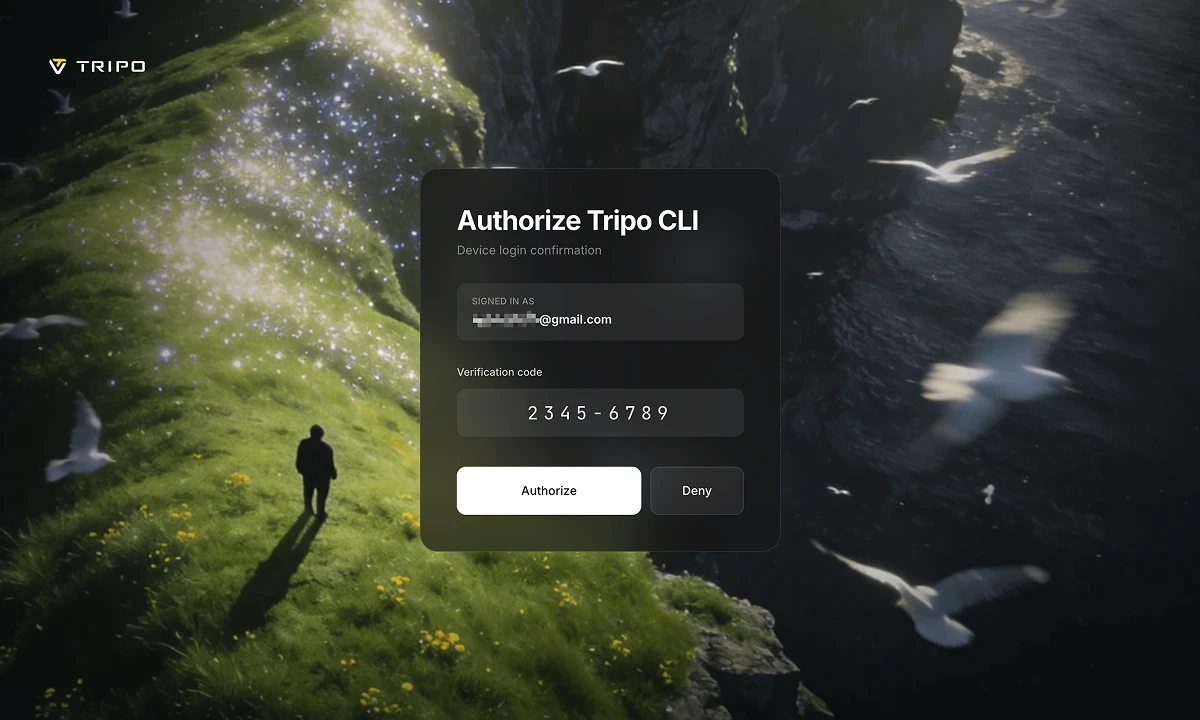
Trouble? The browser did not open, or sign-in did not complete
- Sign-in did not complete: run `tripo login` again, and approve only after double-checking the code shown in your terminal;
- The browser never reacts: copy the URL printed in the terminal into your browser manually;
- Browser authorization is temporarily unavailable: the CLI opens the API key page instead—see "Backup sign-in and regions" at the end of this section.
**Step 3: check that everything is ready**
```bash
tripo doctor
```
It checks your sign-in status, network access, and credit balance in turn. When all three pass, setup is complete.
Trouble? One of the checks failed
- Authentication failed: sign-in did not complete—run `tripo login` and sign in again;
- Network failed: confirm your computer can open web pages; corporate or campus networks may need a proxy;
- Balance failed: you do not have enough credits; nothing has started generating and nothing is charged. Run `tripo topup` to open the billing page.
Backup sign-in and regions (only if browser sign-in is unavailable)
- If you already have an API key, run `tripo login --key tsk_...`, or set the `TRIPO_API_KEY` environment variable;
- An API key is an account credential: never paste it into chat, source code, screenshots, or logs;
- The same installation works for both international and China mainland accounts: the CLI probes both regions with your key and saves the accepted region automatically.
## Create your first 3D model
**Step 1: generate from one sentence**
The words inside the quotation marks are your prompt—replace them with whatever you want to create:
```bash
tripo make "a cute low poly fox"
```
Keep the terminal open while the command runs. Tripo CLI picks the right workflow and model, waits for the task to finish, and downloads the files into a `tripo-out` folder in the current directory. The whole run usually finishes within a few minutes and costs a small amount of credits.
Trouble? Generation did not start, or failed midway
- Insufficient credits: your model has not started generating and nothing is charged. Run `tripo topup` to add credits, then retry;
- Network error: make sure your computer is online, then run the same command again;
- Task failed: any charged credits are refunded automatically—try a different description.
**Step 2: open the preview**
```bash
tripo view @last
```
`@last` means "the most recent task." Your browser opens an interactive 3D preview you can rotate by dragging—when you see your model, you made it!
**After the first success: what you have now**
- **Where the files are**: a new folder under `tripo-out` holds the downloaded 3D model and `task.json`, which records how the task was created; if the server provides a preview image you also get `preview.png`.
- **Open it again**: run `tripo view @last` any time, or `tripo view ` to open any model file.
- **What it cost**: run `tripo balance` to check your credit balance.
- **Hate memorizing commands?** Just run `tripo` to open a guided interactive menu—sign-in, generation, preview, and top-up all live there.
- **Next steps**: generate from images (next section), let an AI assistant drive ("Let AI coding agents master the CLI"), or process in bulk ("Ready-made workflows and pipelines").
## Generate from an image or an existing model
Once the text example works, you can pass local files instead. `concept.png`, `front.png`, and `hero.glb` below are example names—replace them with your own file paths:
```bash
tripo make concept.png --for print
tripo make front.png back.png
tripo make hero.glb --then texture,rig
tripo make @last --then convert:fbx
```
- Line 1: turn a concept image into a print-ready model;
- Line 2: generate from front and back images together for more accurate detail;
- Line 3: texture and rig an existing model;
- Line 4: convert the most recent result to FBX.
## Let AI coding agents master the CLI
Skip this section if you do not use an AI coding agent. The npm package bundles an Agent Skill—command references, scenario recipes, and error-recovery guidance—so an agent can use the CLI correctly. Have the agent run these commands to print the full instructions or a single topic in the terminal:
```bash
tripo docs --llm
tripo docs --topic commands/make
tripo docs --topic examples/game-asset
```
Files bundled in the Skill
```text
skill/
├── SKILL.md
├── common-errors.md
├── commands/
│ ├── account.md
│ ├── batch.md
│ ├── generate.md
│ ├── make.md
│ ├── process.md
│ ├── task.md
│ └── view.md
└── examples/
├── animation.md
├── ar-web.md
├── film.md
├── game-asset.md
├── pipes.md
└── print.md
```
## Command reference
No need to memorize this table: day to day, new users only need `tripo` (interactive menu), `tripo make` (generate), `tripo view` (preview), and `tripo doctor` (health check). Expand the rest only when a specific need comes up.
Show the full command table and common flags
| Command | What it does |
| --- | --- |
| `tripo make ` | Generate, process, and download with one command |
| `tripo ai [description]` | Plan a job, confirm it, and execute it |
| `tripo view [task\|file]` | Open an interactive local 3D preview |
| `tripo redo [task]` | Repeat a request with a fresh seed |
| `tripo login / logout / whoami / use` | Authorize and switch named account profiles |
| `tripo topup / balance / usage` | Open regional billing and inspect credits |
| `tripo generate ` | Access all eight generation endpoints explicitly |
| `tripo model / anim / mesh ` | Run refine, texture, rig, convert, segmentation, and other processing steps |
| `tripo task get/list/watch` | Query, list, or wait for tasks |
| `tripo history [--limit ]` | Show recent local task history |
| `tripo files upload ` | Upload a file and return its `file_token` |
| `tripo batch run ` | Run resumable bulk pipelines with concurrency and retries |
| `tripo config / doctor` | Manage settings and diagnose the local environment |
| `tripo docs [--topic ]` | Print the bundled Agent and command documentation |
| `tripo mcp` | Run the CLI as an MCP server |
| `tripo completion ` | Generate completion for Bash, Zsh, or Fish |
The `make`, `ai`, and `generate` commands, plus the processing subcommands under `model`, `anim`, and `mesh`, support `-o/--out`, `--no-wait`, `--no-download`, `--name`, `--timeout`, `--notify`, and repeatable `--param key=value`. Global automation flags include `--json`, `--yes`, `--quiet`, `--no-open`, and `--profile`.
## Ready-made workflows and pipelines
This is an advanced section; your first generation does not need it. Seven built-in presets apply useful parameters and processing steps at once via `--for `:
`game-mobile` · `game-pc` · `film` · `print` · `ar-web` · `anim` · `toy`
```bash
# Mobile game asset: low-poly generation, texture, then FBX
tripo make "sci-fi crate" --for game-mobile
# Print asset: watertight output, STL, and a flat bottom
tripo make "chess knight" --for print
# Explicit processing chain
tripo make cat.png --then texture,rig,convert:fbx
# The same chain as NDJSON pipes
tripo make cat.png --json | tripo model texture --json | tripo anim rig --json
# Resumable batch processing
tripo batch run assets.yaml --concurrency 2
```
Task references such as `@last`, `@2`, and `@name` work anywhere a task ID is accepted.
## Multiple accounts and regions
Skip this section if you use one Tripo account. Credentials are stored in named profiles, so signing into a second account does not overwrite the first:
```bash
tripo login
tripo login --profile work-cn
tripo use
tripo whoami
tripo make "a fox" --profile work-cn
tripo logout
```
Each profile keeps its own key and region. The `TRIPO_PROFILE` environment variable selects a profile for the current environment, while `TRIPO_API_KEY` bypasses all profiles and has the highest priority.
## Notes for AI coding agents
Human users can skip this section. These rules help an AI coding agent wait for tasks correctly and read machine-readable output.
- `tripo make` and `tripo task watch` are blocking commands. Wait for the process to finish instead of implementing another polling loop.
- With `--json`, most one-shot commands write one final JSON line to stdout. `tripo task watch --json` instead streams NDJSON progress events followed by the final result.
- If `preview.png` exists, inspect it before deciding whether to continue a pipeline or run `tripo redo`.
- Do not invent parameters or force legacy model versions. Use `tripo docs --topic ...` for the supported flags.
- A low-poly request or face budget of 20,000 or less selects `tripo-p1`; other work defaults to `tripo-v3.1`.
Show the exit-code table
| Exit code | Meaning |
| --- | --- |
| `0` | Success |
| `1` | Unexpected or internal error |
| `2` | Invalid usage or parameters |
| `3` | Authentication error |
| `4` | Insufficient credits |
| `5` | Content policy rejection |
| `6` | Task failed; credits are automatically refunded |
| `7` | Network error |
| `8` | Resource not found |
| `9` | Rate limited; retry with backoff |
## Environment variables for automation
You do not need environment variables for normal interactive use; they exist for CI, scripts, and advanced agent workflows. Remember: never commit an API key to a repository, paste it into documentation, or include it in screenshots or logs.
Show the environment-variable table
| Variable | Purpose |
| --- | --- |
| `TRIPO_API_KEY` | API key; highest precedence and suitable for CI or Agents |
| `TRIPO_PROFILE` | Named account profile, equivalent to `--profile` |
| `TRIPO_REGION` | Optional `ov` or `cn` override; normally auto-detected |
| `TRIPO_API_BASE_URL` | API endpoint override |
| `TRIPO_PLATFORM_BASE_URL` | Platform endpoint override |
| `TRIPO_HOME` | Config and history directory; defaults to `~/.tripo` |
| `TRIPO_LLM_BASE_URL` | Optional OpenAI-compatible endpoint for `tripo ai` |
| `TRIPO_LLM_API_KEY` | Optional LLM key for `tripo ai` |
| `TRIPO_LLM_MODEL` | Optional LLM model for `tripo ai` |