

01 / OVERVIEW
Overview
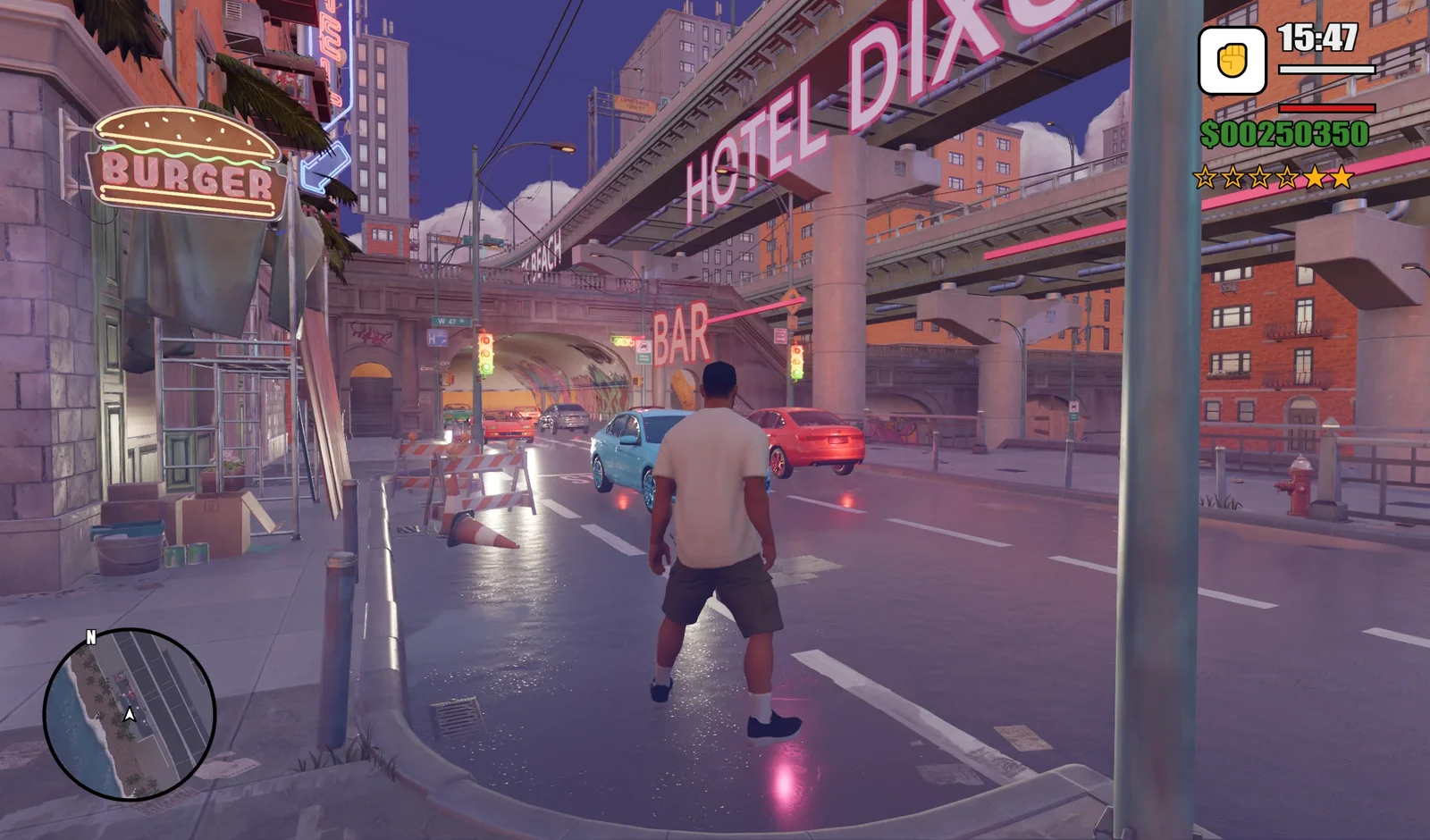
This tutorial presents a practical workflow for combining Claude Opus 5.5, Godot, and Tripo CLI to build a playable GTA-style city prototype. The workflow separates gameplay prototyping from 3D asset production: Claude builds and tests the Godot project, while Tripo creates the character, vehicles, and environment assets that are later imported into the scene.
That separation makes iteration faster and more reliable. You can validate the city layout and core interactions with primitive geometry first, then replace individual placeholders with production-ready GLB assets without rebuilding the whole project.
02 / OVERVIEW
What This Workflow Produces
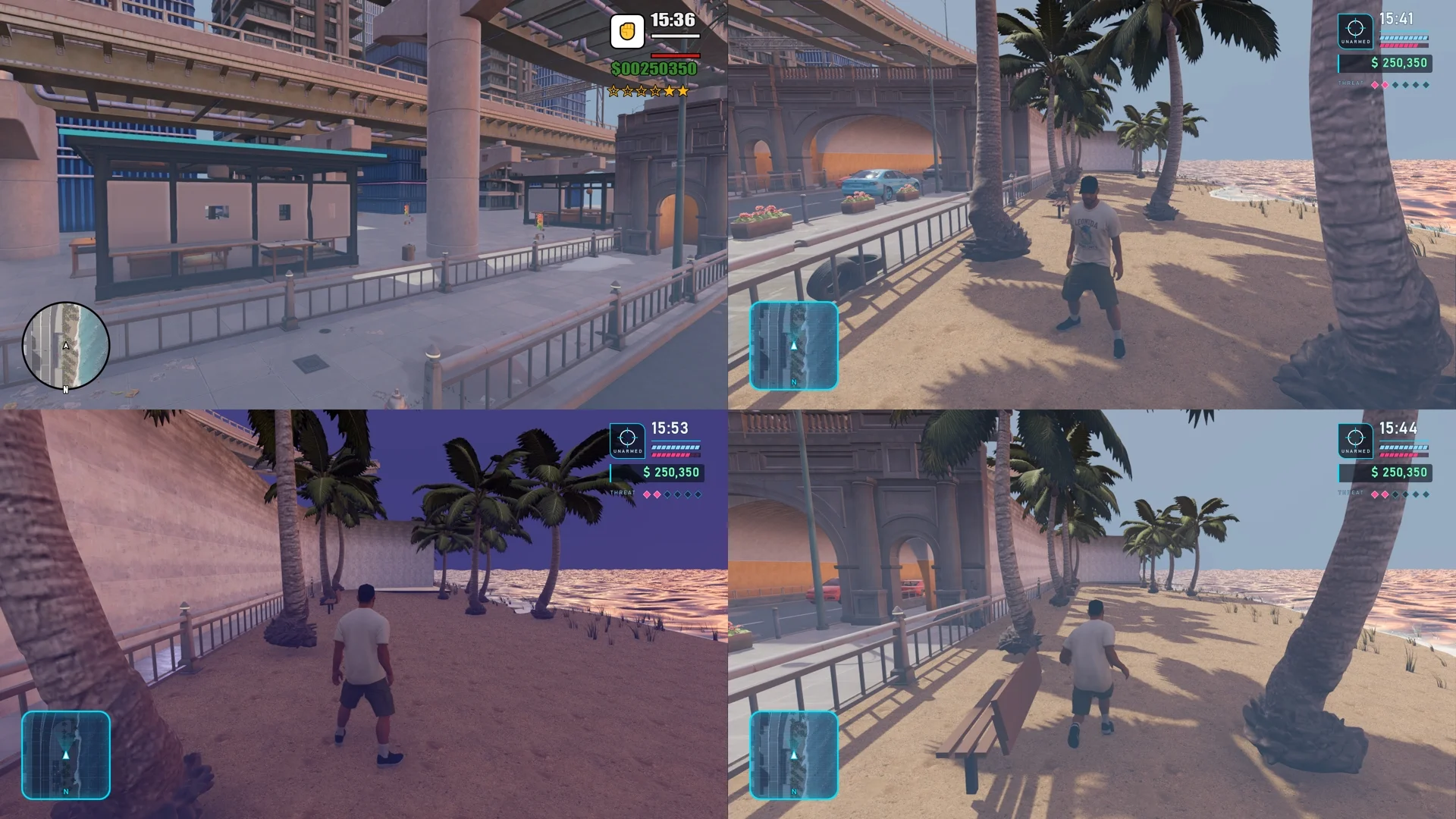
By the end of this tutorial, you will have a Godot 4 project that can run a GTA-style coastal city prototype with:
- A city street with roads, tunnels, elevated structures, and a waterfront. Vehicles follow two-way looping traffic, and the player can press
Fto enter and drive a vehicle. - A controllable character generated from a reference image with Tripo, then rigged and supplied with seven animations.
- Third-person and first-person cameras, switched with
V, plus day/night environments switched withT. - A circular minimap and HUD elements for time, health and armor, money, and wanted level.
03 / OVERVIEW
Why Combine Tripo and Claude Opus 5.5?
The two tools have complementary responsibilities. Claude Opus 5.5 connects to Godot through Godot MCP, creates scenes and GDScript, runs the project, and checks the result. It is responsible for turning the game concept into a working prototype. Tripo is responsible for producing the assets: the character, vehicles, and props can all be generated as GLB files through Tripo CLI, while the character can also be rigged and animated in the same workflow.
Start with primitive geometry so the city layout and gameplay can be tested early. Once the prototype works, replace the placeholders with Tripo assets at the same resource paths. If one asset generation task fails, you can retry that asset independently without affecting the rest of the scene.
04 / OVERVIEW
Before You Start
- Install the generation tool: Install Tripo CLI with
npm install -g tripo-cli. This tutorial uses the CLI for batch generation. - Authenticate with Tripo: Run
tripo loginand complete the authorization flow in your browser. Usetripo whoamiandtripo balanceto verify the account and available credits. Never paste an API key into a chat or project file. - Prepare the Godot project: Install Godot 4, prepare a character reference image, and make sure Claude can access the project directory.
- Connect Godot MCP: Godot MCP lets Claude connect to the Godot editor to create nodes, edit scenes, and run the project. After installing Node.js 18 or later, run
claude mcp add godot -- npx @coding-solo/godot-mcpin Claude Code. In another MCP client, addnpx @coding-solo/godot-mcpto its configuration. Confirm that MCP is connected to Godot before asking Claude to modify the scene.
05 / OVERVIEW
Step 1: Build the Game Prototype with Claude
Begin by asking Claude Opus 5.5 to build a runnable GTA-style coastal city prototype using only Godot nodes, primitive geometry, materials, lights, cameras, and scripts. At this stage, focus on the city blockout, roads, buildings, tunnels, elevated roads, waterfront, placeholder vehicles, day/night switching, and first- and third-person camera controls. The goal is to validate the composition and interactions before introducing final 3D assets.
Inspect the current Godot project and build a runnable GTA-style coastal city prototype. Use only native Godot nodes and primitive geometry such as BoxMesh, PlaneMesh, and CylinderMesh, together with road meshes, collision bodies, materials, lights, cameras, and GDScript. Create walkable roads, buildings, elevated roads, tunnels, a waterfront and water surface, placeholder palm trees and street lamps, and simple placeholder vehicles. First complete an explorable city blockout with basic collision, a day/night toggle, and first-person/third-person camera switching. Run the project and verify that the overall scene and interactions match the reference image. Create all nodes, scripts, and scenes inside the Godot project. Save the scene as res://scenes/neon_coast.tscn and keep the structure ready for Tripo-generated GLB assets to replace nodes or resources at matching names and paths. Do not rebuild unrelated systems and do not generate or import final 3D models at this stage.
Run the scene before moving on. Confirm that the player can move through the city, that collisions behave correctly, and that the camera and day/night controls work. This gives you a stable gameplay foundation for the asset and environment passes.
06 / OVERVIEW
Step 2: Generate and Import 3D Assets with Tripo CLI
Give Claude the character reference image and an asset checklist, then have it submit the Tripo CLI tasks in batches, wait for completion, and inspect every result. Use image-to-3D for the character, then process its materials, rig, and animations. Generate vehicles and props as separate assets. Do not try to turn one city screenshot into an entire city; independent assets are easier to test, replace, and retry.
- Character:
hero_male. - Vehicles:
car_sedan,car_sports, andcar_convertible. - Props:
hotel_facade,motel_sign,palm_tree, andstreet_lamp.
Use Tripo CLI to prepare the assets for this Godot project. Generate hero_male from the provided character reference image, then complete its materials, rig, and these seven animations: idle, walk, run, sprint, jump_start, jump, and jump_land. Generate car_sedan, car_sports, car_convertible, hotel_facade, motel_sign, palm_tree, and street_lamp as separate assets. Save the task status, final model, and failure information for every item. Confirm that each final GLB exists, then organize the assets under matching directories in res://assets/tripo/. If a task fails, retry only that task instead of repeating the entire batch.
The character model and its animations should be generated by Tripo and stored together in the hero_male directory.
Acceptance check: Review the CLI status and final GLB for every item. Preview the character, sedan, and palm tree in Godot. Check their textures, scale, and orientation, then play all seven hero_male animations individually.
07 / OVERVIEW
Step 3: Complete the City, Traffic, and Day/Night Effects
Keep the character disconnected for this pass. Use the CityStreetStylizedPack environment as the base, then complete the beach and water, place palm_tree, street_lamp, hotel_facade, and motel_sign, and add signs such as HOTEL DIXON, OCEAN DRIVE, JUICE CAFE, Vice Beach, BAR, and BURGER.
Add car_sedan, car_sports, and car_convertible. Standardize their scale, orientation, lanes, collision, headlights, and two-way looping traffic. Refine the two environments on top of the day/night system from Step 1 and keep T as the toggle. The daytime version should preserve the road and building details; the nighttime version should emphasize neon lights, fog, headlights, and reflections on the road.
Complete the city in the neon_coast scene without connecting the character yet. Use CityStreetStylizedPack as the base environment. Add the waterfront and water surface, place palm_tree, street_lamp, hotel_facade, and motel_sign, and add signs for HOTEL DIXON, OCEAN DRIVE, JUICE CAFE, Vice Beach, BAR, and BURGER. Use car_sedan, car_sports, and car_convertible to create two-way looping traffic. Correct the vehicle scale, orientation, lane placement, collision, and headlights. Refine the existing T-controlled day/night environments: preserve road and building detail during the day, and emphasize neon, fog, headlights, and road reflections at night. Run the scene and check each part before connecting the character.
08 / OVERVIEW
Step 4: Add the Character, Cameras, and HUD
Only after the city and traffic pass is approved should you add hero_male as a CharacterBody3D with a capsule collision body. Connect the idle, walk, run, sprint, jump_start, jump, and jump_land animations generated in Step 2, then calibrate the feet against the ground.
Convert the camera from Step 1 into a character-follow camera. Use a third-person SpringArm3D, and let the player press V to switch between first-person and third-person views. When the character approaches a vehicle, pressing F should enter the vehicle and enable driving. Finally, add the circular minimap and HUD elements for time, health and armor, money, and wanted level. Check readability in both daytime and nighttime modes.
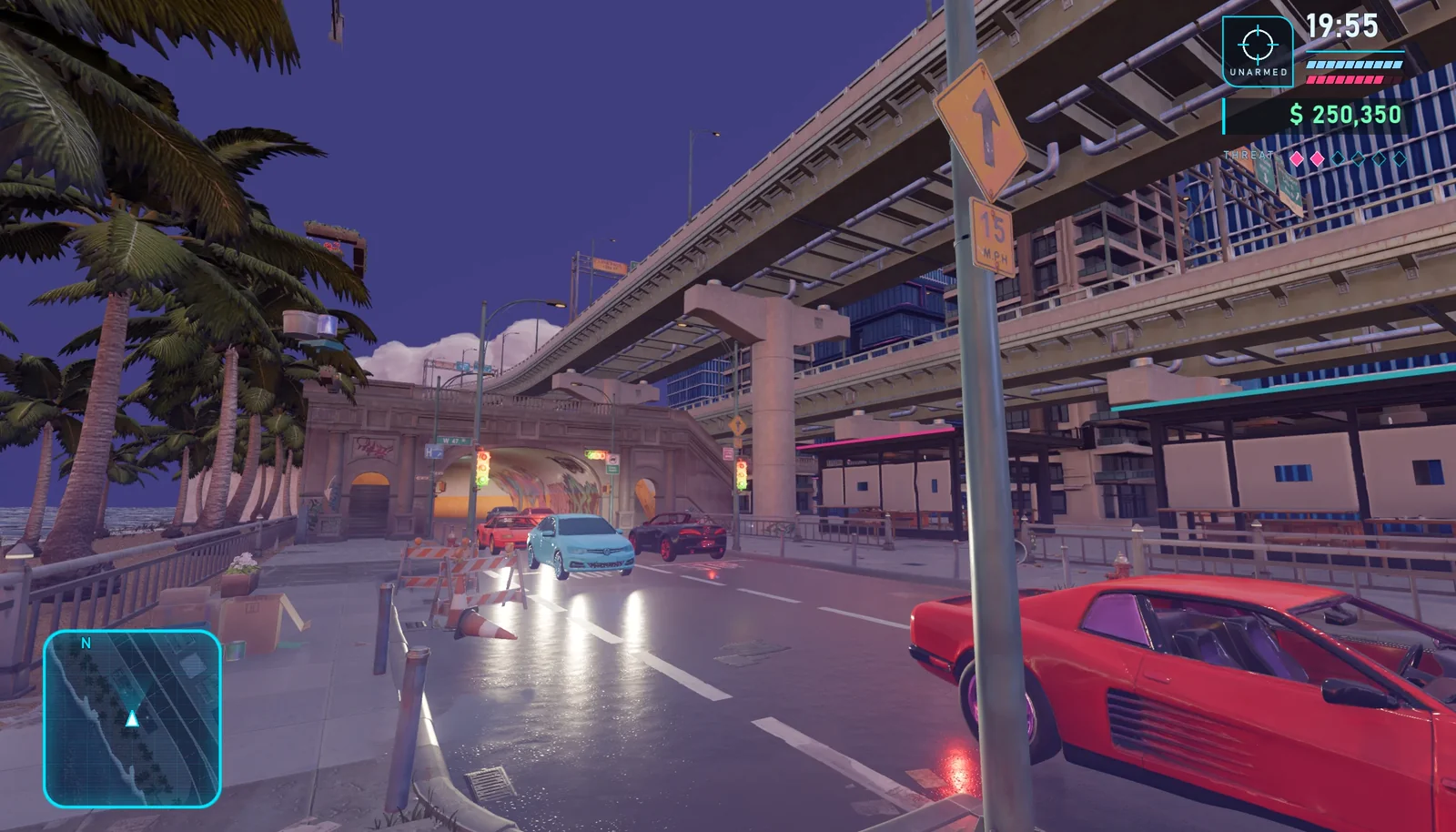
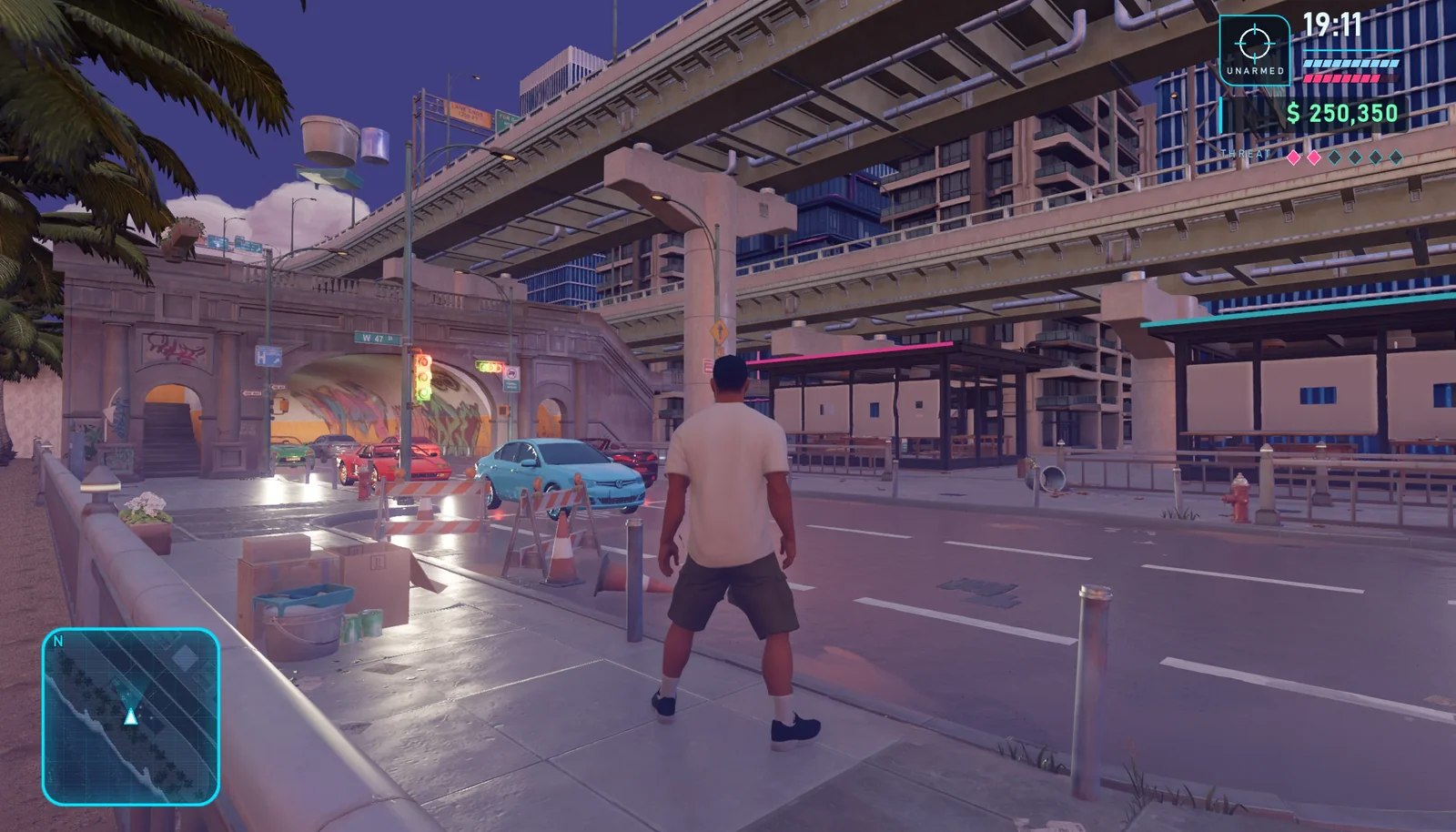
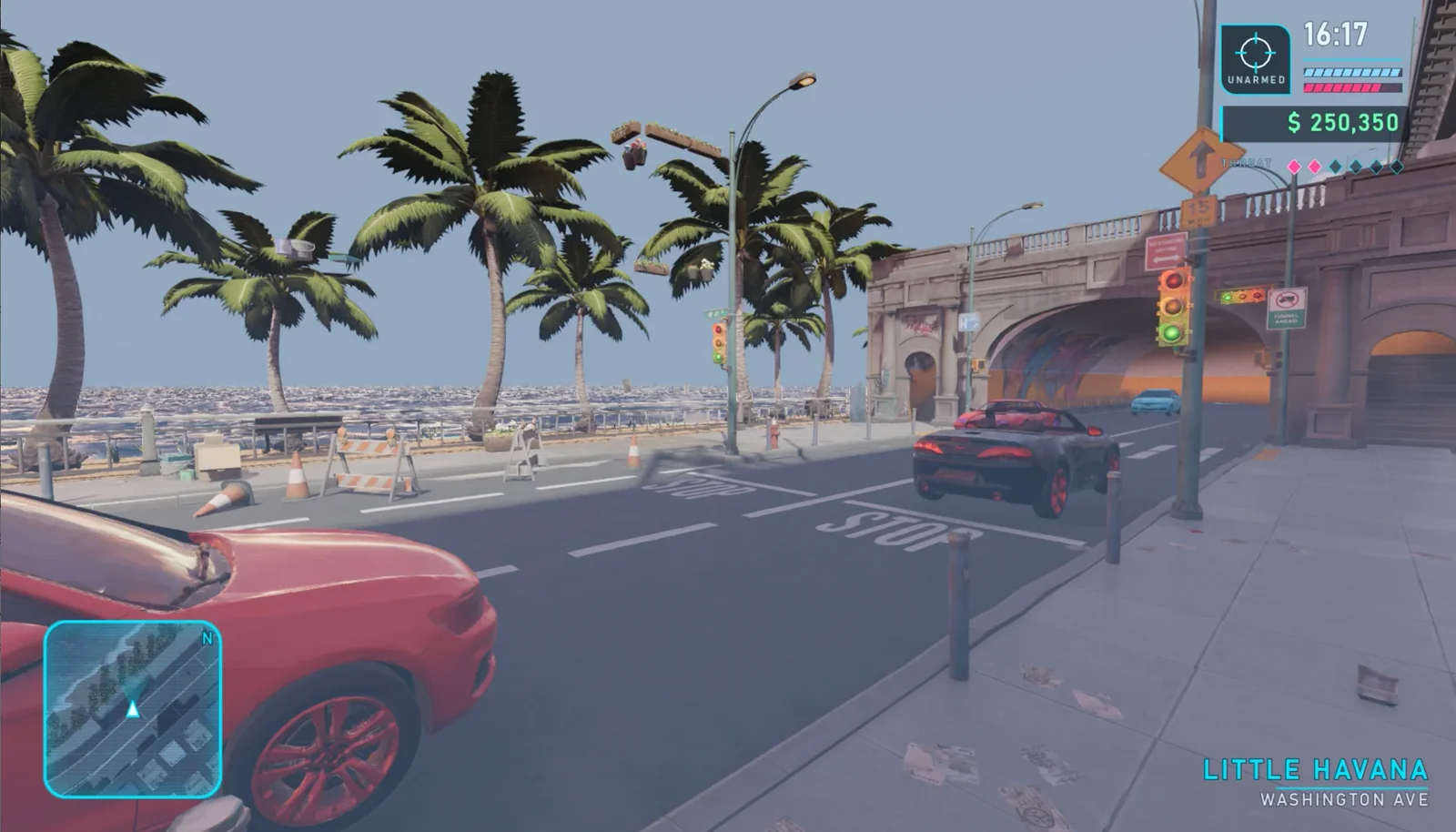
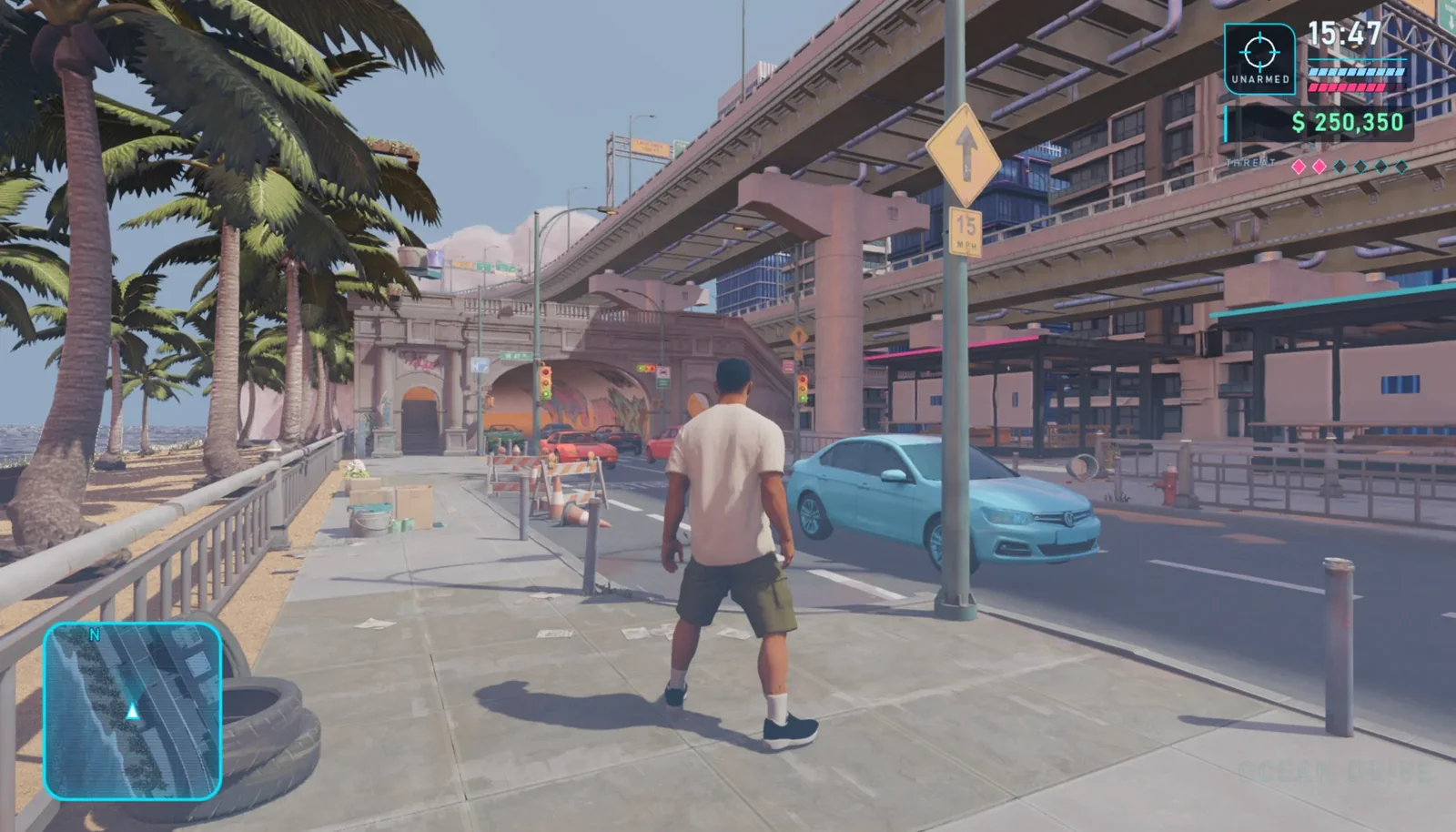
The city, roads, vehicles, and day/night environments are complete. Now connect res://assets/tripo/hero_male to the project. Add the character as a CharacterBody3D, calibrate the feet and capsule collision body, and connect the idle, walk, run, sprint, jump_start, jump, and jump_land animations. Use a third-person SpringArm3D that follows the character, and let V switch between first-person and third-person views. When the character is near a vehicle, pressing F should enter vehicle-driving mode. Add a circular minimap, a time display, health and armor bars, money, and a wanted-level HUD. Preserve the completed city, traffic, and day/night logic; do not rebuild the scene.
09 / OVERVIEW
Step 5: Run the Final Day/Night Acceptance Pass
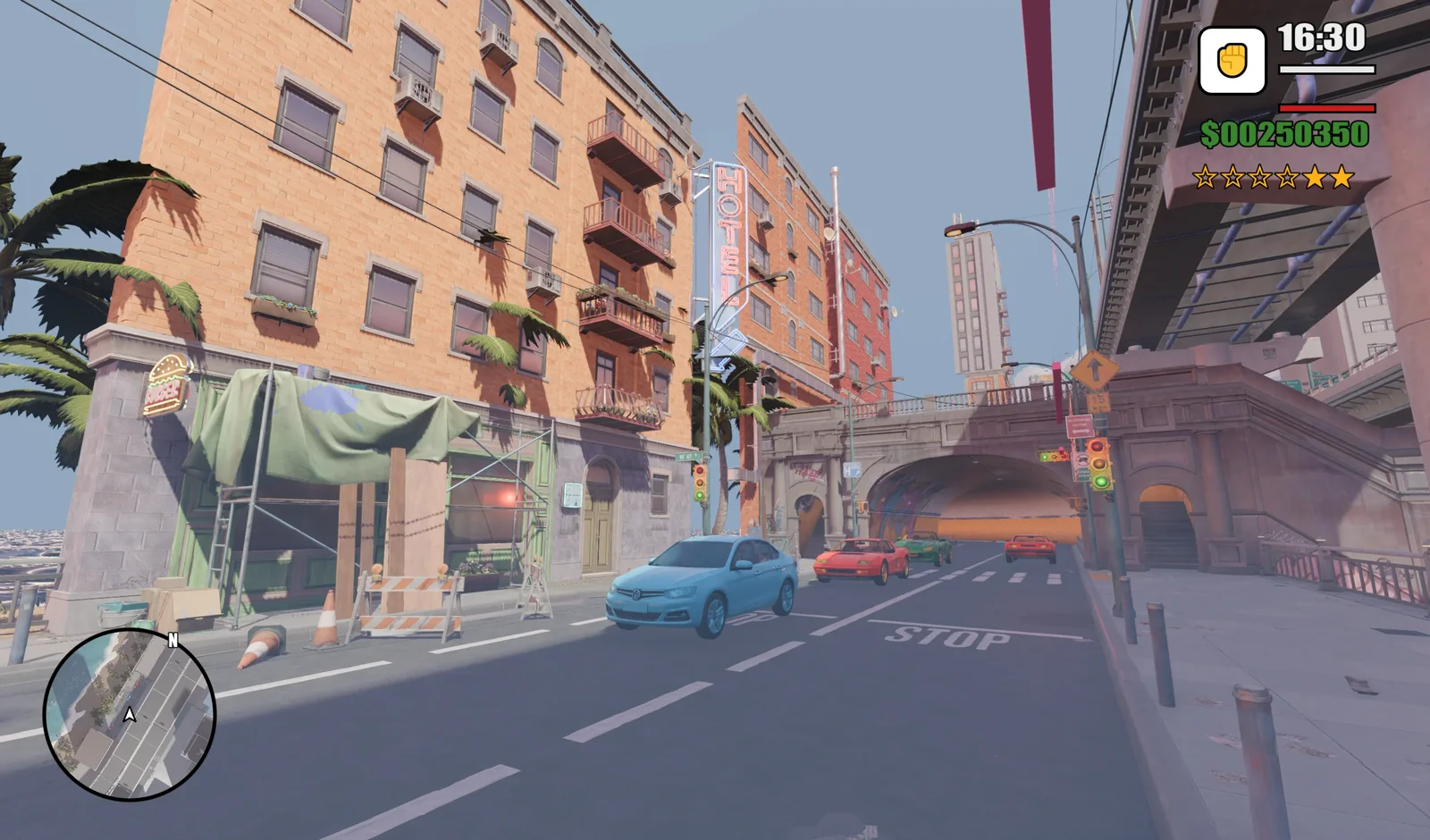
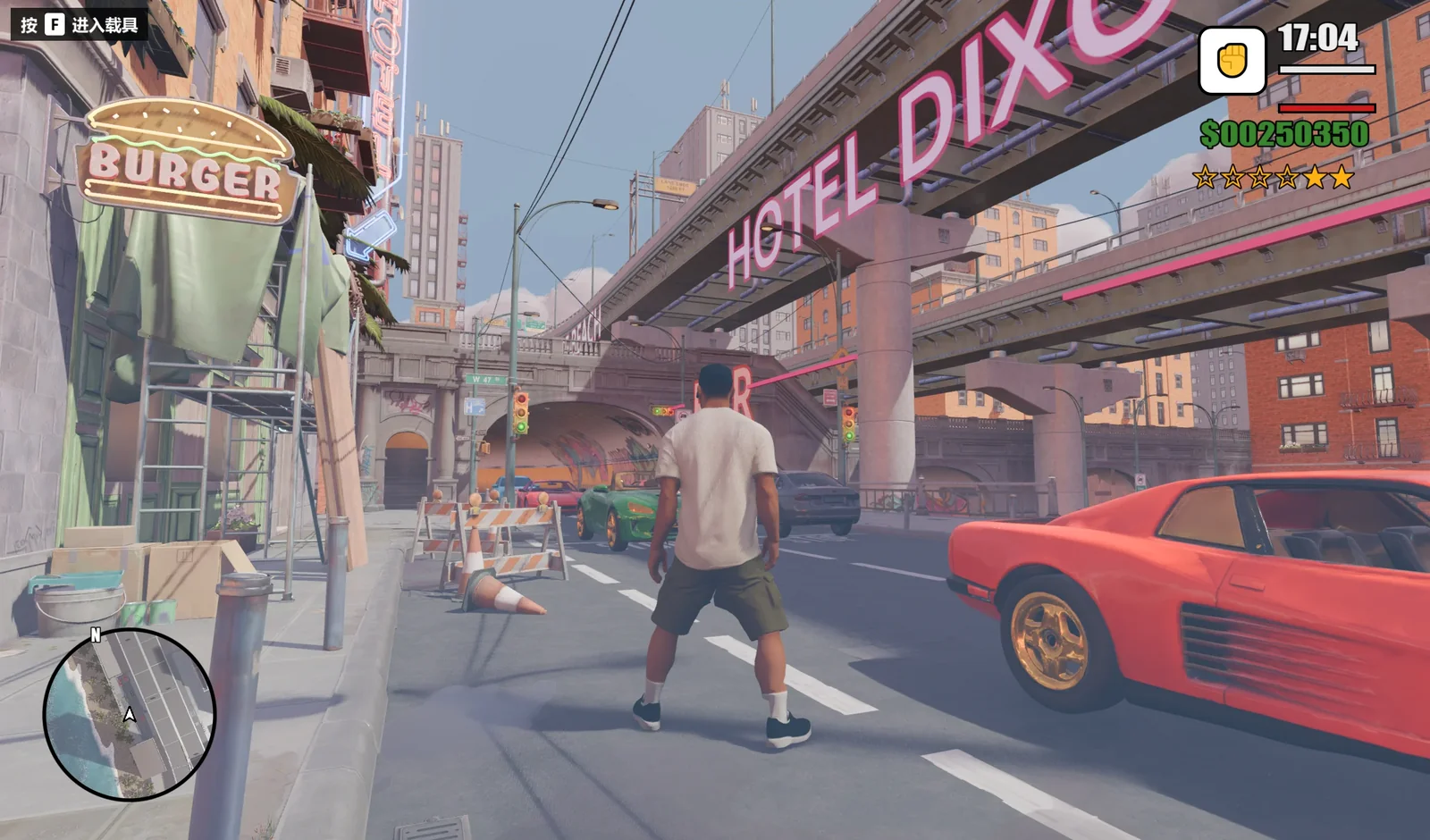
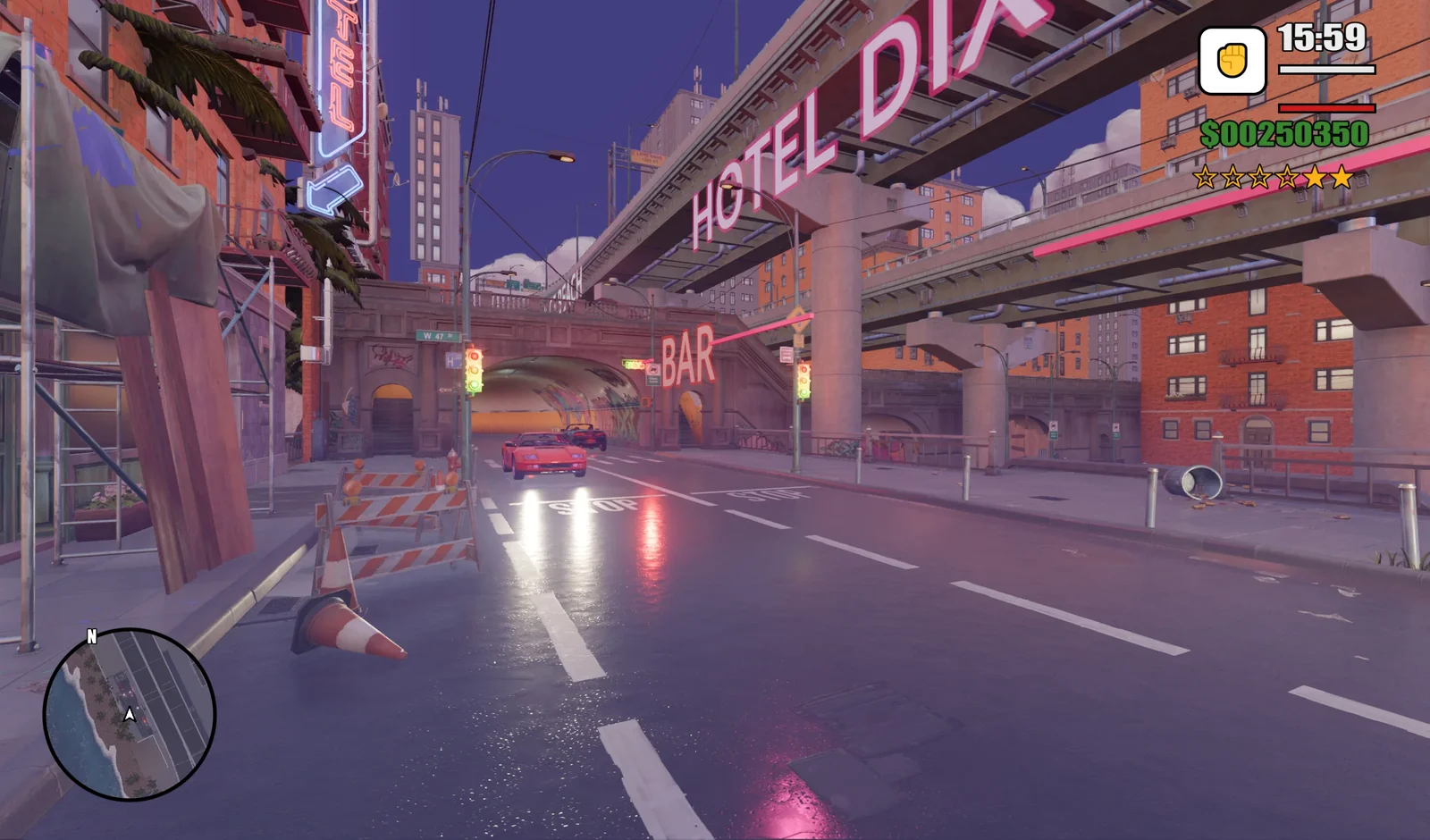
Run res://scenes/neon_coast.tscn and test character movement, jumping, camera switching, vehicle traffic, entering a vehicle with F, collision, and the day/night effects. Compare the final daytime and nighttime views and check the character, streets, HUD, lighting, and reflections as a complete experience.
10 / OVERVIEW
Final Checklist
- The project opens and runs from
res://scenes/neon_coast.tscn. - The character moves, jumps, and transitions between all seven animations.
Vswitches camera perspective andTswitches the environment.- Vehicles follow two-way looping traffic and can be entered with
F. - Collision, scale, orientation, lighting, and materials are correct for the imported GLBs.
- The minimap and HUD remain readable in both daytime and nighttime scenes.
With this workflow, Claude can handle the project structure and gameplay iteration while Tripo supplies the 3D content. The result is a modular prototype that is easy to inspect, test, and extend with more vehicles, missions, characters, and city districts.