

01 / OVERVIEW
Overview
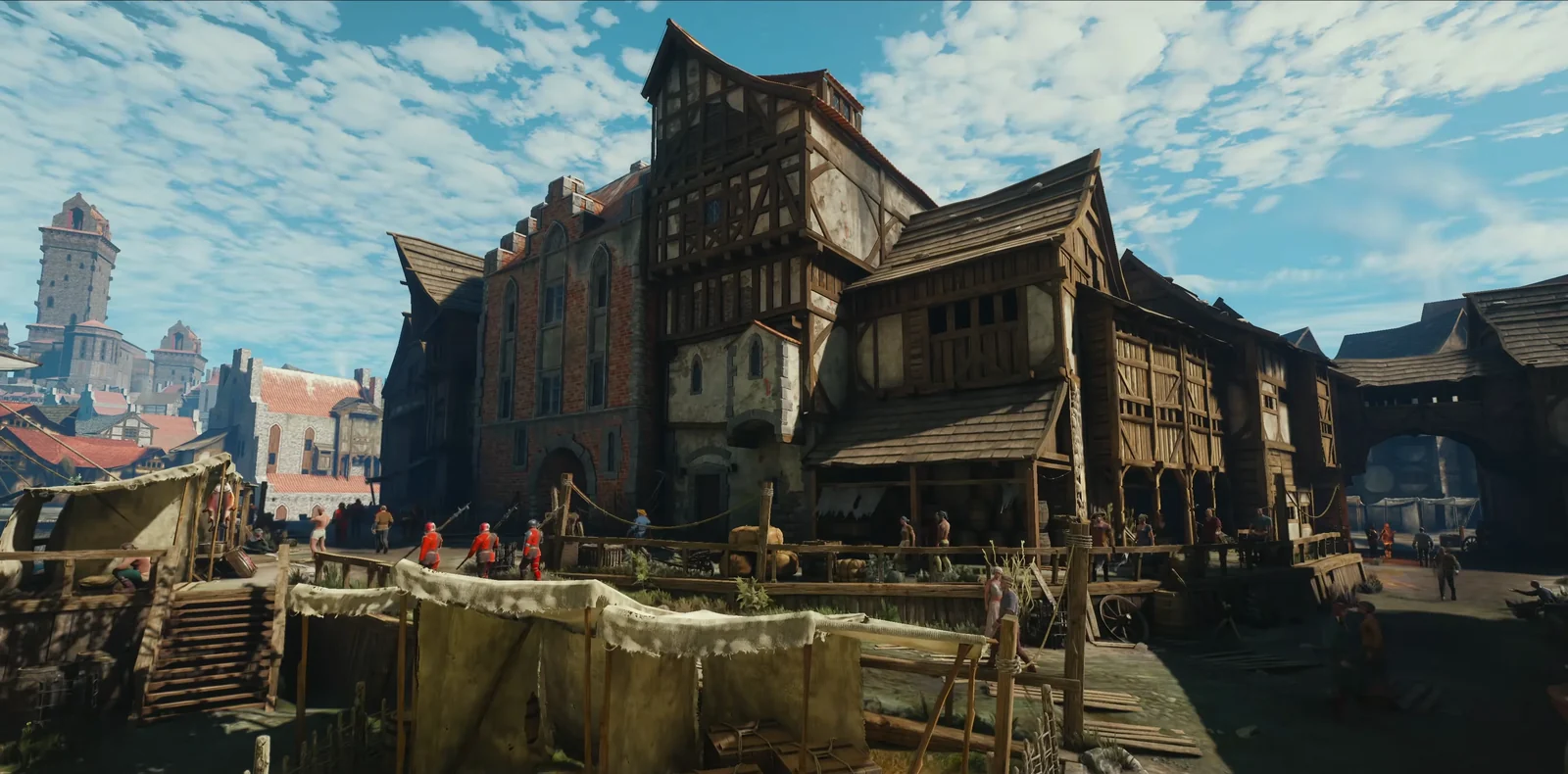
Astra is very good at carrying a plan through a long chain of tool calls: generating assets, placing them, checking the result, and fixing what's off. I used it with Tripo CLI and Unreal MCP to build a playable medieval game scene in Unreal Engine 5. The project starts with one reference image and ends with a city you can walk through in a first-person view.
I've included the prompts I used at each stage, edited for length and clarity. They show how I described what I wanted and how the work moved between Tripo and Unreal MCP.
02 / OVERVIEW
What You Will Build
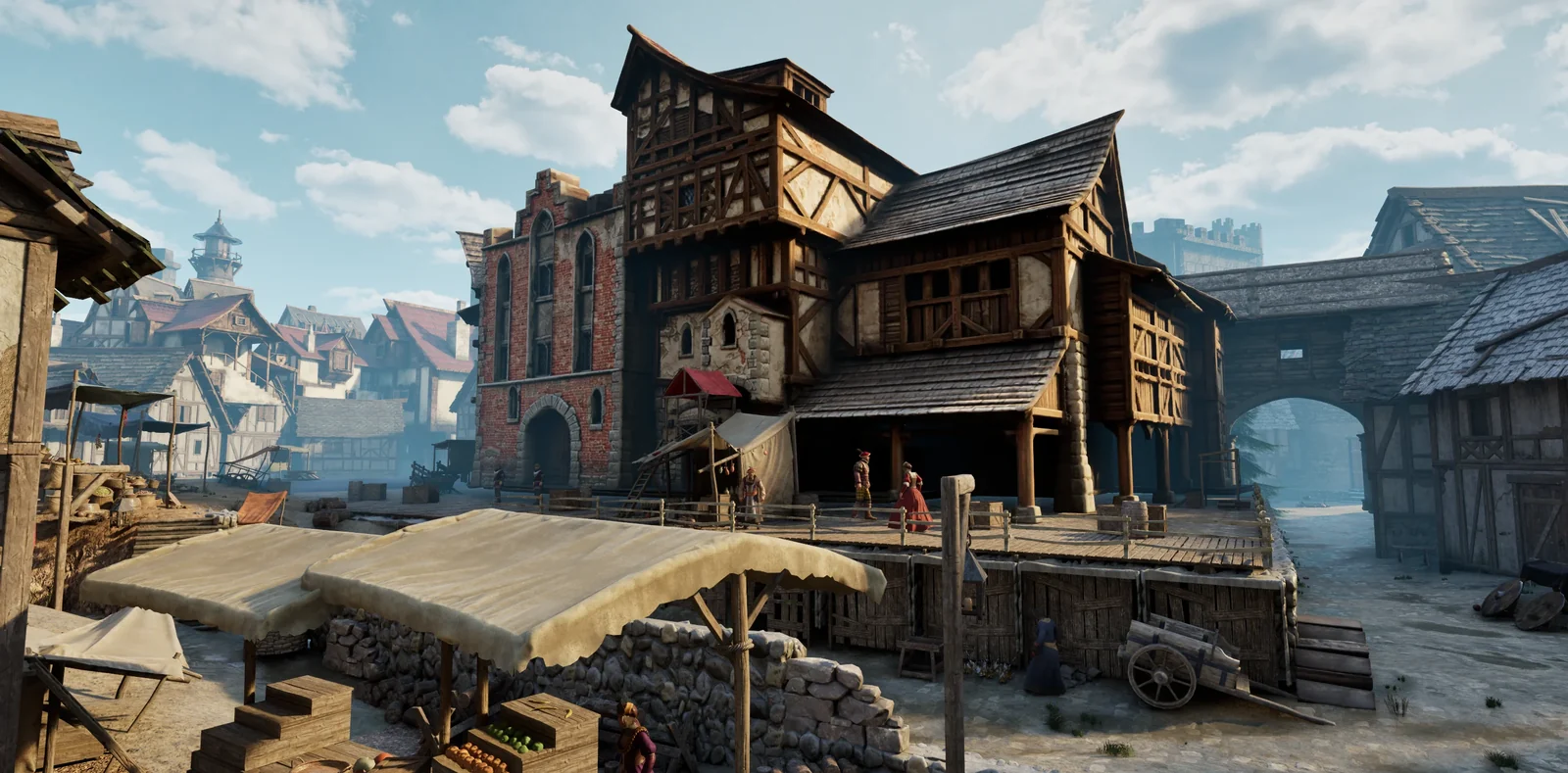
The scene is a small medieval city, seen from a market square. Stalls, crates, barrels, and a wooden boardwalk fill the foreground. Stone buildings and half-timbered houses form the middle ground. A tower and a church hold the skyline on the left, and a city gate at the end of the road gives the player somewhere to go. Light fog separates the layers, so the gate stays readable from across the square.
You can walk from the market to the gate, climb the steps, and pass through the gateway.
To get there, you'll:
- Break the reference image into foreground, midground, and background layers, then turn it into a prioritized asset list.
- Block out the level with basic shapes to lock in scale, routes, and the camera.
- Batch-generate buildings and props with Tripo, using H3.1 for hero buildings and P2.0 for distant buildings and small props.
- Swap the final assets into the blockout.
- Add lighting, sky, and fog.
- Walk the scene in the editor, then test it in a first-person view.
03 / OVERVIEW
Why Combine Tripo and Astra?
Before generating anything, I had ChatGPT Images 2.5 break the reference image into an asset list: hero buildings, small props, and pieces that only need a clear silhouette in the distance. From there, Astra needed two things: finished 3D models and a way to work inside the editor.
Tripo made the models. Astra called it for each asset on the list, using H3.1 for hero buildings and P2.0 for distant buildings and small props, then imported the results into the Unreal project. Because Tripo runs from the command line, Astra could submit the whole batch, track each task, and retry only the assets that failed.
Unreal MCP gave Astra the editor. It built the blockout, placed the assets, and set up the lighting. Then it walked the route in Play in Editor to find anything floating, overlapping, or blocking the path.
My job was mostly describing what I wanted and judging whether the result was right.
04 / OVERVIEW
Before You Start
- Install the generation tool: install Tripo CLI (
npm install -g tripo-cli), or use the official Tripo 3D Codex Plugin. - Authenticate Tripo: create an API key and set it as an environment variable, or run
tripo auth login. Usetripo auth whoamiandtripo account balanceto confirm your account is active and you still have credits. - Prepare Unreal Engine: confirm that UE5 has the Unreal MCP and All Toolsets plugins enabled, create an empty level, and have your scene reference image ready.
05 / OVERVIEW
Step 1: Plan the Assets and the Route
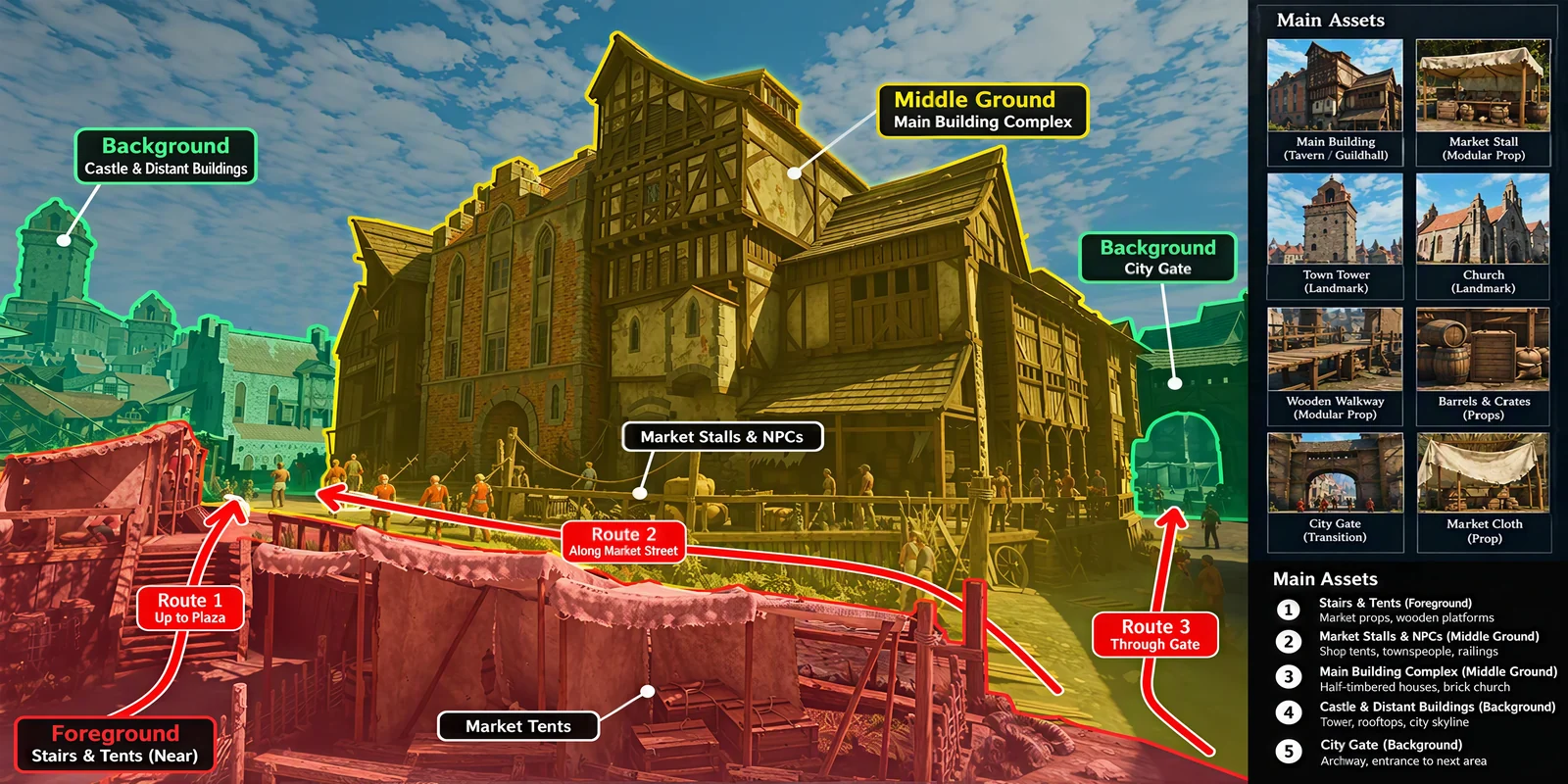
Start by handing the reference image to ChatGPT Images 2.5 and letting it analyze the scene only — don't rush into generating the final models:
Analyze this medieval city scene reference image. Break it into foreground, midground, and background layers, and list the 3D assets that need to be generated separately. Also mark:
- The main buildings, city gate, tower, church, and houses;
- Small props such as stalls, crates, barrels, wooden boardwalks, and fences;
- The route the player is likely to take and the final sight line;
- Which objects suit low-detail assets and which need to keep more detail;
- Which structures can be done directly in Unreal Engine with terrain, basic geometry, or repeated modules.
Output a prioritized asset list. Do not treat the whole scene image as a single 3D model.
06 / OVERVIEW
Step 2: Build and Check the Blockout
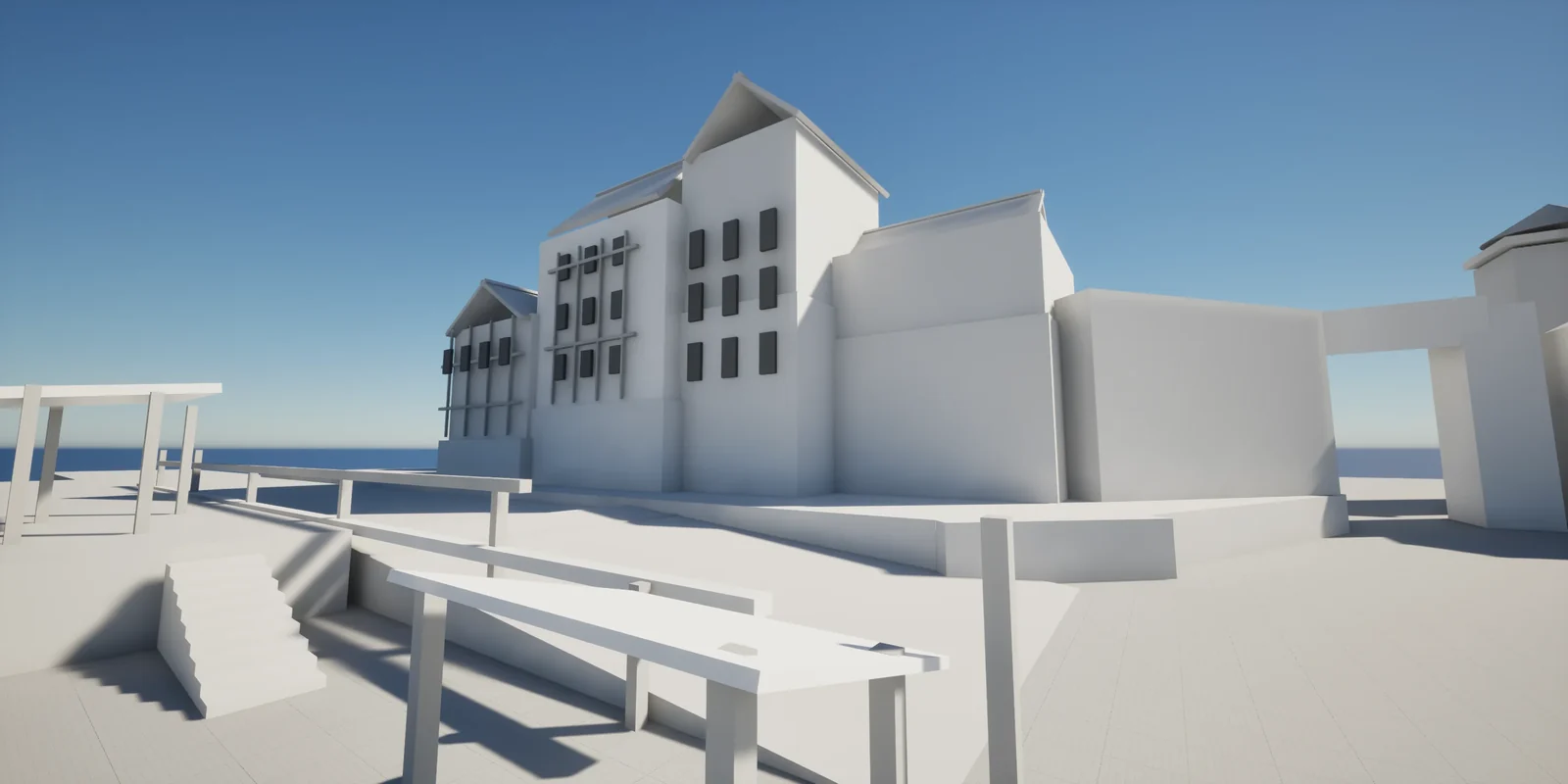
With the breakdown done, have Unreal MCP build a blockout from simple geometry first and confirm the overall space and the camera composition, then move on to generating the final assets.
The current project directory contains the Unreal Engine project files, Unreal Engine is already open, and the current level is empty. Using the reference image, build a complete blockout of the scene with simple geometry and basic shapes, and place each object in a sensible position. Ignore the people in the reference image, and don't use the final high-detail models at this stage.

When you're done, use neutral preview lighting and adjust the camera angle so the shot is close to the reference image. Check the scene layout, object scale and spacing, occlusion, how objects sit on the ground, and the walking route, and make sure there are no obvious problems.
07 / OVERVIEW
Step 3: Batch-Generate the Final Assets
Start with a single hero building to validate the generation settings and the export result, then have Astra (or another GPT model) work through the asset list and call Tripo in batch to generate the remaining buildings and props.
- Organize the batch list: prepare a separate reference image for each asset, and record its name, type, where it is used, and its detail level. If there aren't many assets, you can use the ChatGPT Images 2.5 scene breakdown shown above — it lays out the models you need clearly, so a single image is enough to generate all of them.
- Keep the generation rules consistent: use H3.1 for foreground hero buildings and P2.0 for distant buildings and small props, and require no people, no background, and a flat bottom across the board.
- Submit the tasks: send the reference images or the asset list straight to GPT, use the prompts below to have it call the Tripo API, then import the results into Unreal Engine.
Tip: if there are a lot of models, or you want the model files in separate folders so they are easier to organize and find, group the asset list into Buildings, Props, and Background, and ask GPT in the prompt to save each group to its own directory.
- Check and retry: confirm each task one by one. Retry any asset that failed, came out structurally wrong, or picked up background from the reference image — individually, without regenerating the whole batch.
- Materials and textures: confirm that the base color, roughness, metallic, and normal maps — and the materials built from them — are correct in UE5.
- Collision: check that building walls, doorways, and steps correctly block or allow the character through.
- Geometry quality: check the models for holes and intersecting geometry.
- Performance: enable Nanite on high-detail static foreground assets; keep the face count down on distant buildings and small props, and watch performance in the actual level.
- Using the reference image I've provided, call Tripo AI to generate one model and import it into the current UE project under /Game/Generated/.
- If any step fails, give me a detailed log report so I can tell where it went wrong.
- Working from the asset list and the matching reference images, call Tripo in batch to generate the models and import them into UE under /Game/Generated/.
- Use H3.1 for foreground hero buildings and P2.0 for distant buildings and small props;
- Each model should contain only its target object — no people, no extra buildings, no complex background;
- Use clear, unique English asset names;
- Retry failed or rejected assets individually; do not regenerate the whole batch.
When everything is done, output a list of the assets that succeeded, failed, and still need a retry.
Tips: the difference between Tripo's two models
- HD Model (H3.1) generates high-poly models of up to roughly 2 million faces, with face count control and multi-view reference input, and produces 8K Texture and PBR maps directly for high-fidelity reproduction. It is built for work that needs rich geometric detail — 3D printing and camera-grade static object rendering. A good fit for Nanite-enabled static assets in UE5.
- Smart Mesh (P2.0) generates low-poly models with clean topology, with native quad or triangle output, and a face count controllable between 500 and 50K. It supports proportion adjustment, local editing, four variants per generation, and multi-view input. It is built for low-poly needs that go on to rigging and animation, and for prop assets.
08 / OVERVIEW
Step 4: Swap In the Assets and Assemble the Scene
Put the final assets back into the positions established during the Step 2 blockout. Swap in the hero buildings and the city gate first, then fill in the distant buildings and the foreground props.
Using the blockout positions in the current Unreal Engine level and the reference image, replace each blockout piece with the corresponding final asset already imported into the project, and keep the scale, road, steps, city gate position, and camera direction established during the blockout stage.

Assemble in this order:
1. Place the stone hero buildings and half-timbered houses first to set the midground silhouette;
2. Place the city gate on the right as the end of the player's route;
3. Place the tower, church, and other distant buildings far off to the left to fill out the skyline;
4. Add stalls, crates, barrels, and the wooden boardwalk in the foreground;
5. Keep the road and elevation changes confirmed in the blockout stage, and do not let any asset block the player's route;
6. Vary repeated assets with rotation, slight scaling, and position changes;
7. When you are done, check the building silhouettes, occlusion, ground contact, and overall composition from the reference camera angle.
09 / OVERVIEW
Step 5: Set Up Lighting and Atmosphere
Once the layout is stable, move on to lighting and atmosphere.
- Add a Directional Light to set the main light and shadow direction.
- Add Sky Atmosphere and Sky Light for sky color and ambient light.
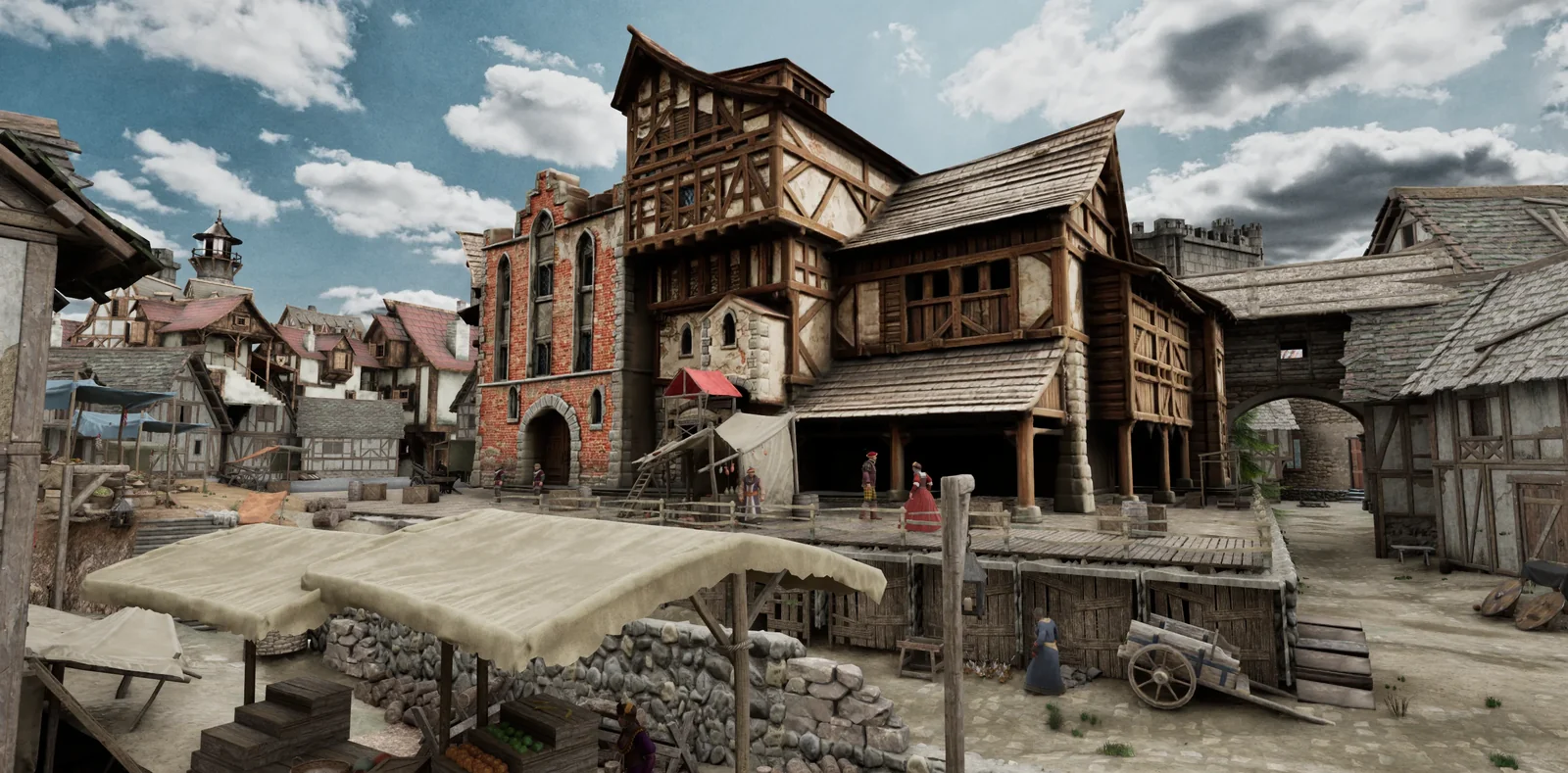
- Add a light Exponential Height Fog as needed to separate the foreground, midground, and background. Keep the foreground road readable, the city gate slightly darker but still recognizable, and the distant tower's silhouette intact.
Using the reference image, adjust the lighting in the current Unreal Engine scene: add a Directional Light, Sky Atmosphere, Sky Light, and a light Exponential Height Fog. Keep the foreground road readable, give the hero buildings a sense of volume, keep the city gate slightly darker but with its silhouette still legible, and keep the distant tower on the skyline. Check the result from the reference camera and from the first-person view separately.
10 / OVERVIEW
Step 6: Play in First Person
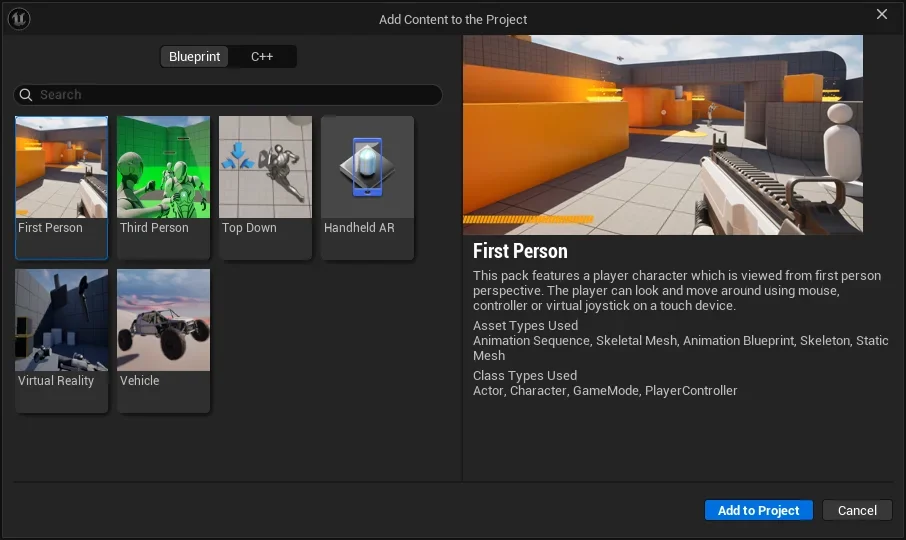
Once the overall look and the route check out, add the First Person feature pack for a final playability test.
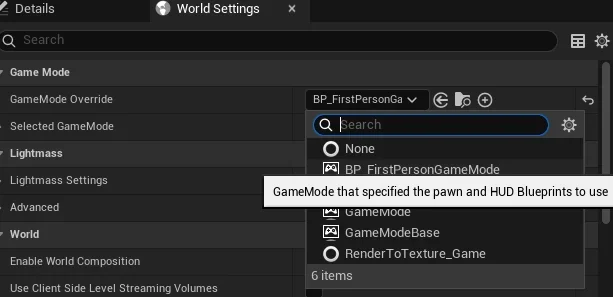
- Add the feature pack: bring the First Person feature pack into the current project, set the Player Start, and change the GameMode.
- First-person test: in Play in Editor, check the road, steps, doorways, collision, and the player's view, and fix anything that blocks the route.
- Final output: once there are no obvious problems left, record a first-person walkthrough video and save or package the project.
First, tour the current scene along the planned route with the Unreal Editor's free camera, checking composition, lighting, scale, occlusion, floating objects, and intersecting geometry, and fix what you find.

Only after the scene tour passes, add the First Person feature pack to the current project, set the Player Start, and change the GameMode to BP_FirstPersonGameMode. Then record the final first-person walkthrough video: enter Play in Editor, walk from the foreground market toward the city gate, and check the road, steps, doorways, collision, and the player's view. Fix every blocking issue before you finish.
11 / OVERVIEW
Building Your Own Scene
What I like about this workflow is that I can start from one reference image and give feedback by walking through the result. A blocked doorway in Play in Editor leads to changes in placement and collision. A model that picked up part of the reference background gets regenerated on its own, without touching the rest of the batch. A city gate that's too dark becomes a lighting change. I still have to decide whether the scene feels right, but Astra can carry those decisions through Tripo and into the level.
If you have a game scene in mind, try building a small version with GPT-6 Astra first. Start with one reference image and a short asset list: a market stall, a street corner, or a single building is enough. Install Tripo CLI or the Tripo 3D Codex Plugin, generate the assets, place them, and walk through the result. Be specific about what you want to change, and keep building from there.